

| Attendees | Toastmaster | Judges | Speech Contestants | Evaluation Contestants | Timers | Sergeant at Arms | Ballot Counters |
| Using Z00M -- Everyone | ZOOM duties for staff | ZOOM duties for Contestants | Breakout Rooms |
| View the Meeting Agenda | |
| What's worse than a talk that goes on too long? Perhaps too many selfies of your Uncle's vacation trip. Winston Churchill once said this about a speech he made; "I apologize for the length of my speech. Had I more time to prepate, I could have made it much shorter." A good speaker gives Goldilocks speaches. Not too long -- Not too short -- Just right. Timing of speeches is important. If there is no time limit, a person can go on and on and on. You wouln't join us in our contest if that's what we did. Instead, Contestants mold their speeches to fit the time available | 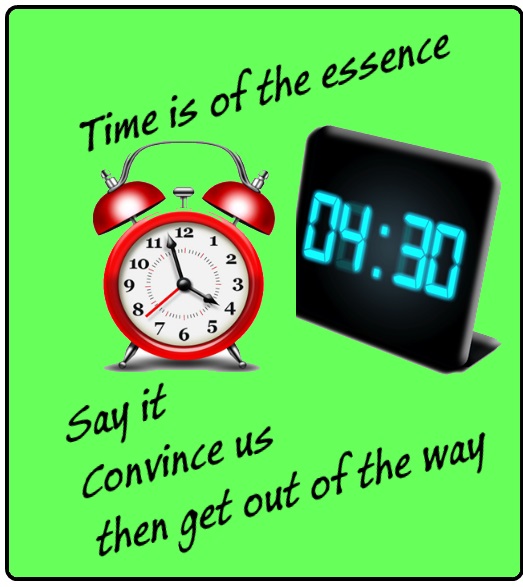 | ||
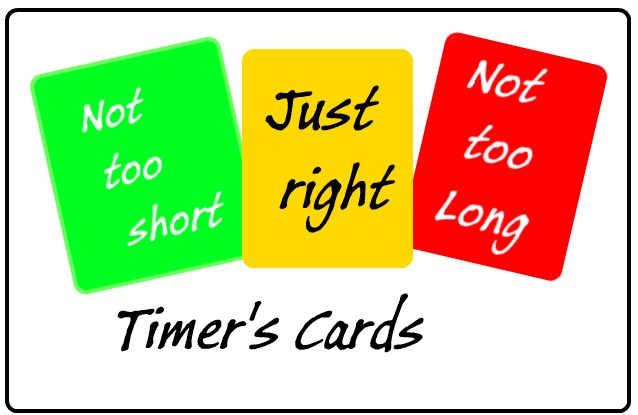 | The timer shows colors to indicate the three important times for a speech or evaluation: >> Green indicates that the speaker has qualified with at least the minimum time.
>> Red warns the speaker that the golden time is up and there are only thirty more seconds before disqualification. |

| Both timers download the colored virtual backgrounds -- Green, Yellow, & Red. |
| Download Green Background |
| Download Yellow Background |
| Download Red Background |
Only one timer will use the Color Virtual Background, but both should have them should a role change be required
How to use The Virtual Background Colors for timing speeches
Timers
[Chief Judge verifies that renaming is correct.]
Chief
Judge will brief timers on their duties before the contest
starts
Reporting:
Timers will print TWO copies of the Contest Timing Report Form. We suggest your paste it into a word processor document, keeping it open for the duration of the contest. You can fill in the names when the order of speakers is announced. Enter the time as each contestant finishes speaking.
You can then copy the form using the <copy> function of your word processor or Control/C from the keyboard.
When asked for your report, you can paste the information into the chat box as a Private Message the Contest chair when requested.
Alternately on paper, write the contestant names and the time. Make
sure you note the
difference between the
two contests. You can write the chat private message
from the paper when each contest comes to an end.
Timer with Light -
You may use large colored paper or use the Virtual Background to show the colors.
Preferably, use a colored Virtual Background. How to use your Virtual Background for showing the colors.
(If you are able to do green screen and make your screen green, yellow and red, please do so.
Demonstrate showing your colors to assure that it will work properly. It will help if your practice before you are asked to demonstrate it.
Show us
all now your colors. Everyone in the room, please let the timer know how it looks.
You must have an accurate timing device. Recommend the Toastmasters timer from the App Store.
To
verify. International
Speech is
5 to 7 minutes. Green
light at Five.
Yellow at Six. Red at Seven.
To
verify. Evaluation Contest is 2 to 3 minutes.
Green at TWO. Yellow at TWO AND ONE HALF
minutes. Red at Seven.
Keep
the red up until contestant stops and Toastmaster resumes speaking.
Then clear the light.
When
each contest is completed, Timers, please Send me, the chief judge a
private chat about time. When
to send
the time of all contestants? When
the
Toastmaster says, “Unlimited Silence for Judges to complete their
ballots.”
Now
when does time begin?
Normally
I would tell you that time begins at the first communication
with the audience. HOWEVER, Please note that the Toastmaster has been
asked to
say the following:
Toastmaster
says verbatim
-
Everyone
should mute their microphone.
-
Zoom
Master, please signal for the next contestant.
-
[contestant
is present in main room.]
-
Judges,
please look for CE ____ and
pin the contestant now.
-
Contestant
at this time, please find TL _____and pin
TL ____.
-
[wait
one full second for pinning]
-
Toastmaster
will now state contestant’s name slowly
and clear TWICE.
-
After
contestant is done with evaluation, Toastmaster
calls for one minute of silence for the judges.
After
what the Toastmaster is asked to say, then time begins with the
contestant’s first communication with the audience whether verbal or
non-verbal. To be
clear, I don’t want
timing to start as the contestant is physically moving in order to pin
the
Timer with Lights.
If
a contestant is under or goes over time, you will not give any
indication.
Timers do you have questions?
| Contestant Number |
Contestant Name | Contestant Time |
| 1 |
||
| 2 |
||
| 3 |
||
| 4 |
||
| 5 |
||
| 6 |
||
| 7 |
||
| 8 |
||
| 9 |
Left click on the color background Image and select <Save As> from the menu
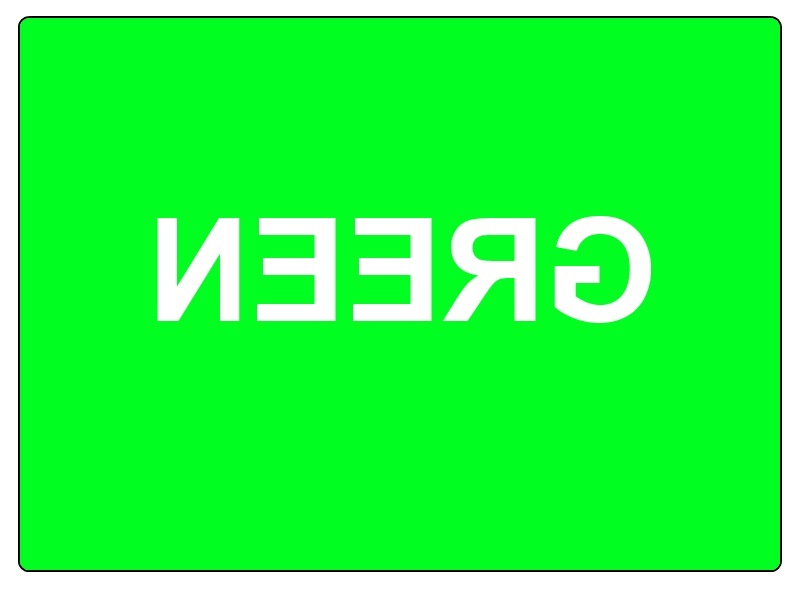
The normal setting for images is "Mirrored" The words are reversed here so you don't have to unclidk "Mirror"

How to use Virtual Background to show timing colors
Note: Virtual Backgrounds work best if the full screen area is covered in a monochrome (single color, preferabley green) background. Any solid color bedsheet will work. Experiment to see how well a background works for your setting before deciding to use Virtual Backgrounds. If it does work, try using your favorite snapshot for all your Zoom adventures. The Taj Mahal, or Mt. Fugi will do wonders for your apearance, even in pajamas.
To make the backgrounds available, right-click on each image and select <Save Picture as> Then save it in a convenient place in your files so it can easily be found. Save them to files named RED, YELLOW, and RED, preferably as JPG files
Go to the Virtual Background window As follows

This will bring up a window: that looks something like this, without the blue text and arrows.

To add the backgrounds to ZOOM's backgrounds, Do steps 1 through three to get the green background, then repeat for yellow and Red.
1. select virtual background
2. click on K+Add Image
3. Find your colored files (GREEN.jpj ) and open it to add it to Zoom's backgrounds
4. repeat for yellow and red.
Once you have the colors added to zoom you can select each color -- or no background -- from <Virtual Background>